
How to prepare a seating plan
On this page
Administration: changes to an existing event.
Build the venue layout, connect saleable seats to products and check that buyers can select the right seat at the right price.
Before you begin
You need an event with seating enabled, a form and a ticket offer. Prepare the actual venue arrangement, including tables, rows, stage and aisles. Check capacity as well as appearance.
Build the layout
Open the seating plan
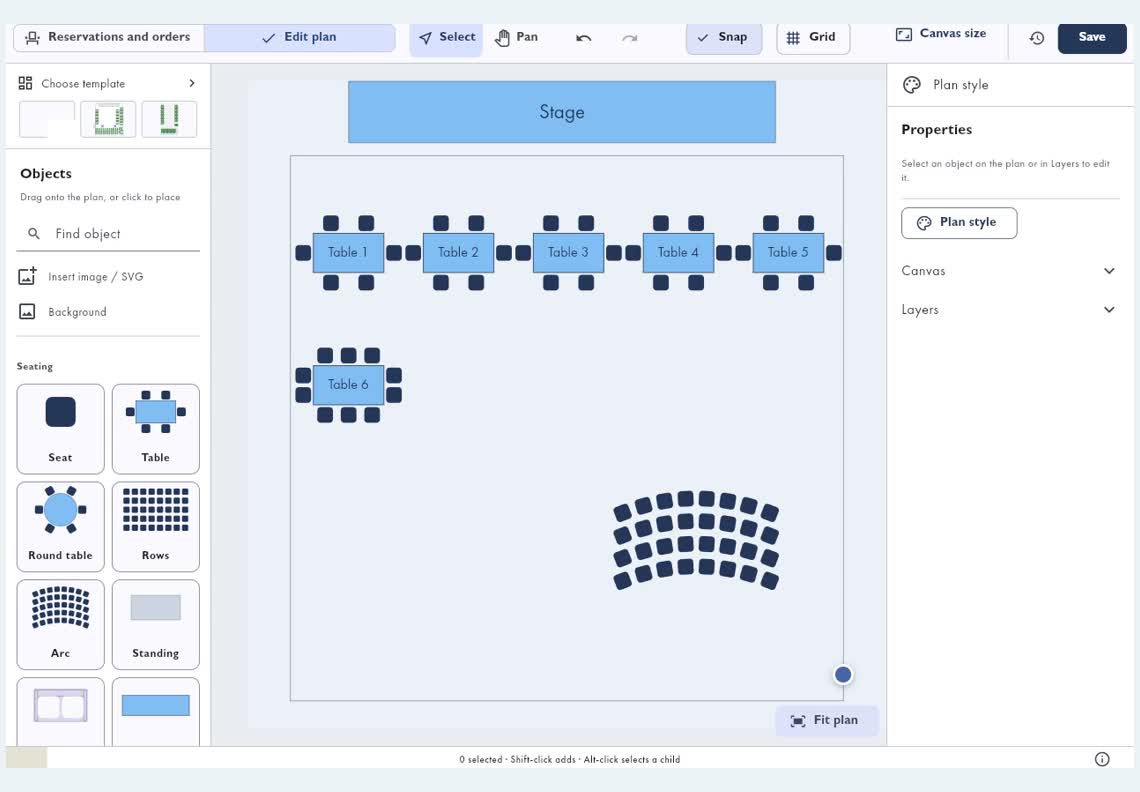
For an existing event, open Blueprint and switch to layout editing. Use Hall templates to choose a template or an empty plan. Initial setup is covered in the separate wizard guide.Open the seating plan in the app
Add venue objects
Add tables, chairs, rows or standing areas and position them to match the venue. Include orientation features such as the stage.
Check names and counts
Give tables and groups recognizable names that also make sense on tickets. Compare the seat count with actual capacity. Set the number of places for standing areas.
Assign the offer
Assign the correct product to saleable seats or their group and check the price. An unassigned or new seat may not inherit a saleable offer. For a standing area, assign its product and capacity; drawing an area alone does not make it ready for sales. For prices and shared limits, follow products and capacity.Open products in the app
Save and check the public form
Save the plan. Open the public form, select a particular seat and verify its label, product and price in the order summary. Also check selection and zoom on a phone. Get the saved public link using the form guide.
Changes after sales start
Ordered, used or actively held seats are protected. Do not redraw them to make them appear available. Resolve a particular sale through order detail → Tickets and places. Its plan shows saved assignments; use the plan editor to change venue geometry.Open orders in the app Save product and price changes in their respective editor.
If a seat cannot be purchased, check its product binding, visibility, capacity and holds. For embedded-page height problems, use troubleshooting.