
How to prepare and publish an order form
On this page
Administration: changes to an existing event.
Choose what buyers fill in, what they can buy and when ordering is available. Finish by checking the saved public link.
Before you begin
You need an event and permission to edit its forms. Prepare the ticket offer and payment setup for paid orders.
Open or create a form
Open Forms in the event administration and select a form or create one. Use Form for fields and sales availability, Settings for the public link and payment details, and Design for appearance.Open forms in the app
Build the buyer's form
Check contact fields
Keep the email and organizer-required buyer details. Collect only information you need. Required fields must be filled before the buyer can continue.
Add tickets and the offer
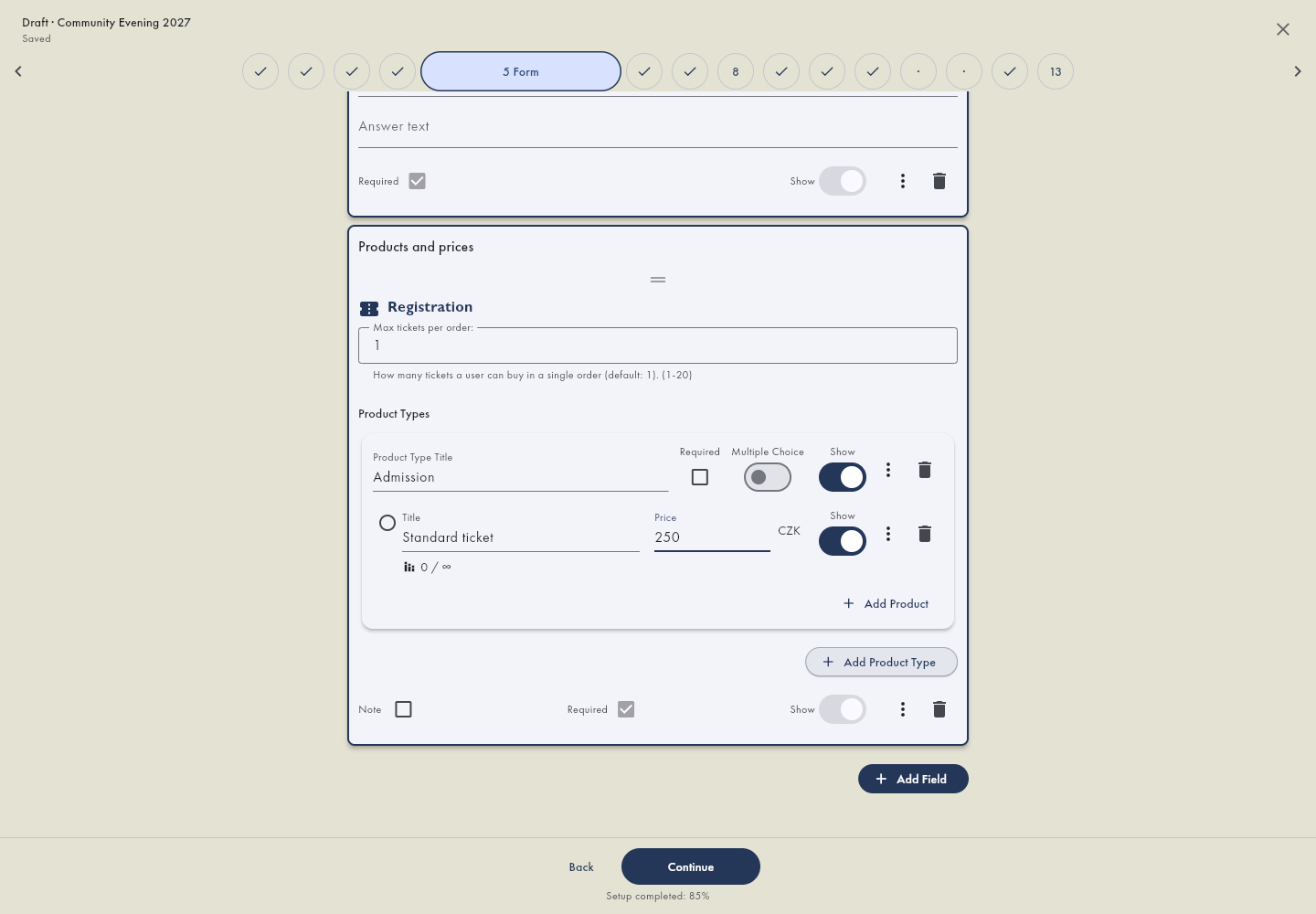
Add a ticket field and connect the appropriate products, prices and optional extras. Follow prices and capacity for the offer itself.Open products in the app
Add your questions
Use Add Field for a note or other question. A question for the whole order differs from one inside each ticket. Visibility and required status are separate settings.
Review the form
Check field order, labels and prices. Hide unnecessary options. Products or fields already used by orders may be protected from deletion.
Save and copy the public link
Save the form, then copy its current saved public link containing /form/. An unsaved address preview is not a confirmed public URL. If an address is already taken, choose another and save again.
Set ordering availability
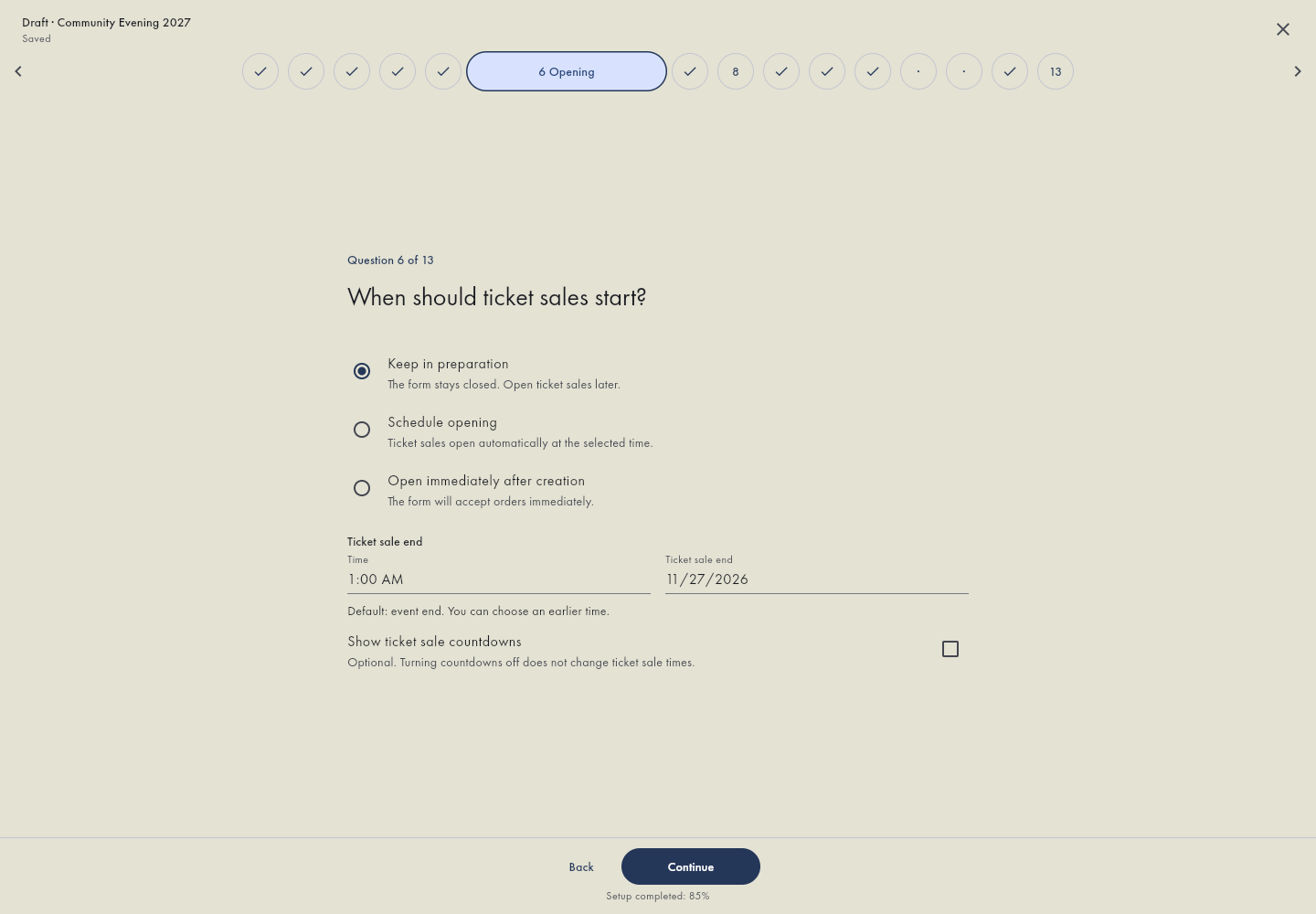
In Form → Schedule and Limits, check sales start and end. Use the availability control on the Form tab for manual opening or closure. Before opening, visitors may see a countdown and introductory information. Publishing an event listing does not itself open the form.Open forms in the app The event listing is controlled separately in event publication settings.
Edit closed form content
Expand Closed form content and choose Before opening or After closing. The whole section starts collapsed. Use the pencil beside the preview to edit directly in place. Before opening, Done returns to the preview and retains your changes; the form Save persists them. Email notifications, heading and countdown controls are under collapsed Settings. Removing the email block pauses new collection; Undo restores it. Configure dates under Automatic opening and closing.
Check as a visitor
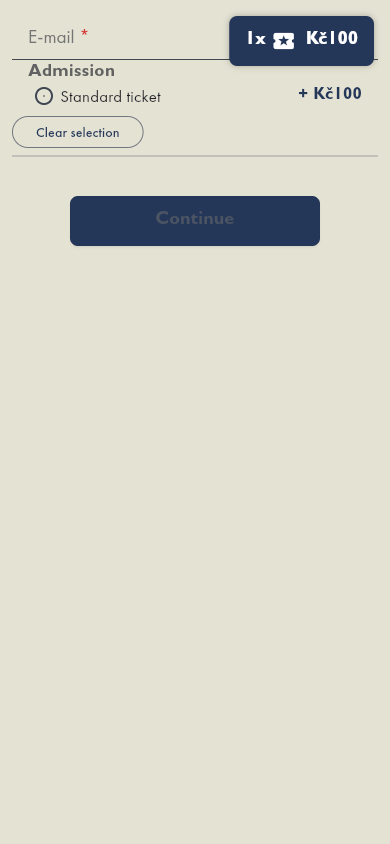
Open the public link in a private window on desktop and mobile. Select a ticket, fill required fields and verify the order summary and total. You can check appearance without submitting; submission can reserve tickets and send an email. Then embed the form or share the direct link.
Buying on a phone
Use the public form in a mobile browser, select a seat and review the order before submitting. Editing a hall or a large ticket layout is easier on a computer.
Set the appearance for every embed
Open Forms, select the form and open Design. Set Match website appearance and save the form. All websites apply the change on their next load. No HTML or plugin setting needs changing.Open forms in the app