
How to manage orders and ticket delivery
On this page
Administration: changes to an existing event.
Find an order and open its detail. Check the contact, tickets, payments, emails and change history in one place.
Before you begin
You need access to orders for the correct event and edit permission to make changes. Payment actions also depend on bank account permissions. Ask for the order symbol or contact email.
Find and open an order
Open Orders in the correct event
Search by symbol, email or name. Check filters and cancelled orders if it is missing.Open orders in the app
Click the order symbol
Use the button in the Order Symbol column to open the detail. You can also double-click a non-editable data cell. A single click selects a cell; the checkbox selects an order for bulk actions.
Choose a tab
The detail appears beside the table on larger screens and uses the work area on smaller ones. Use its header arrows to move between orders and close it to return to the table.
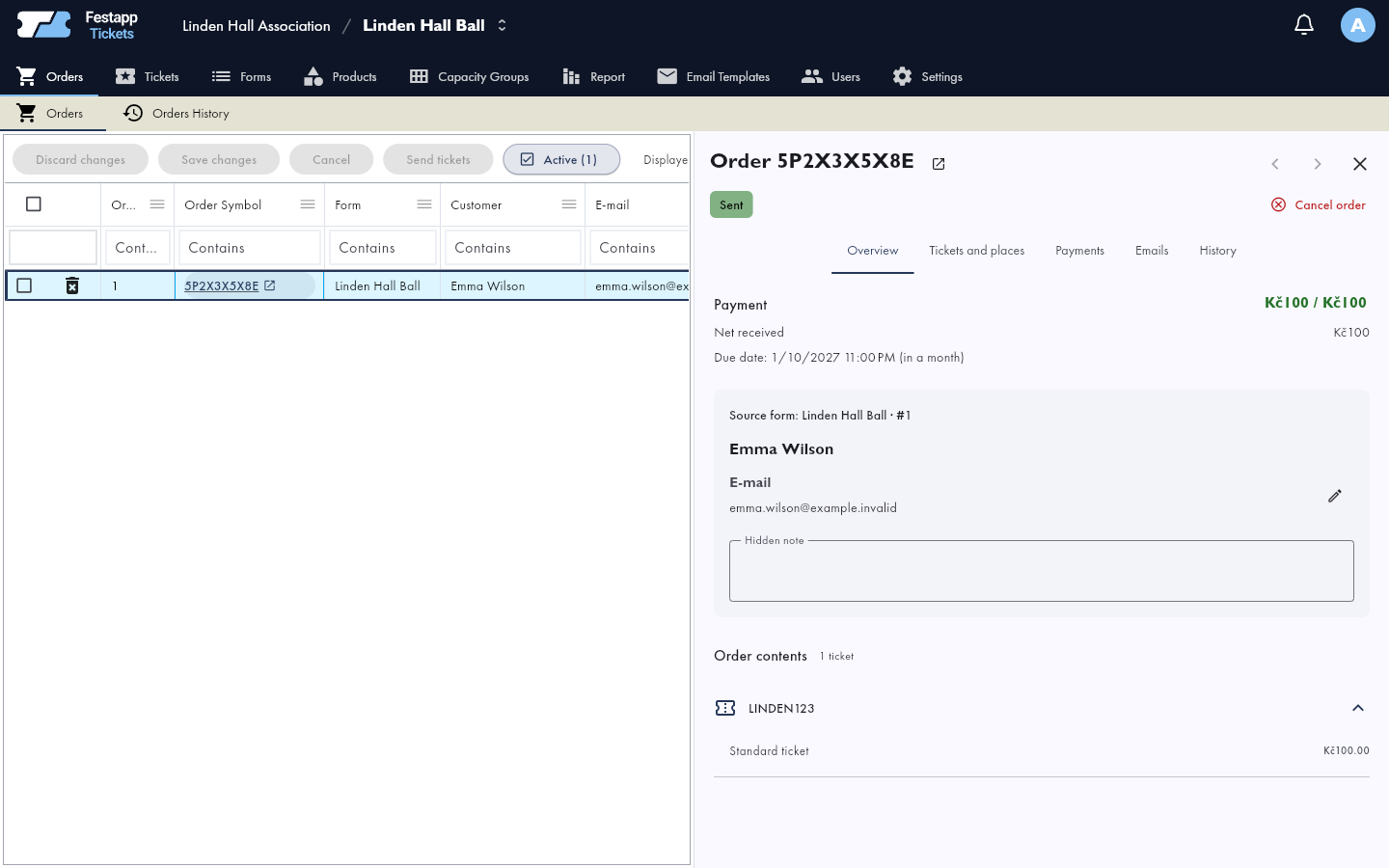
What the detail contains
- Overview: customer contact, payment summary, order contents and notes.
- Tickets and places: individual tickets, their information and assigned places. Events without tickets use Applications and places.
- Payments: saved payment instructions, received amounts and related transactions.
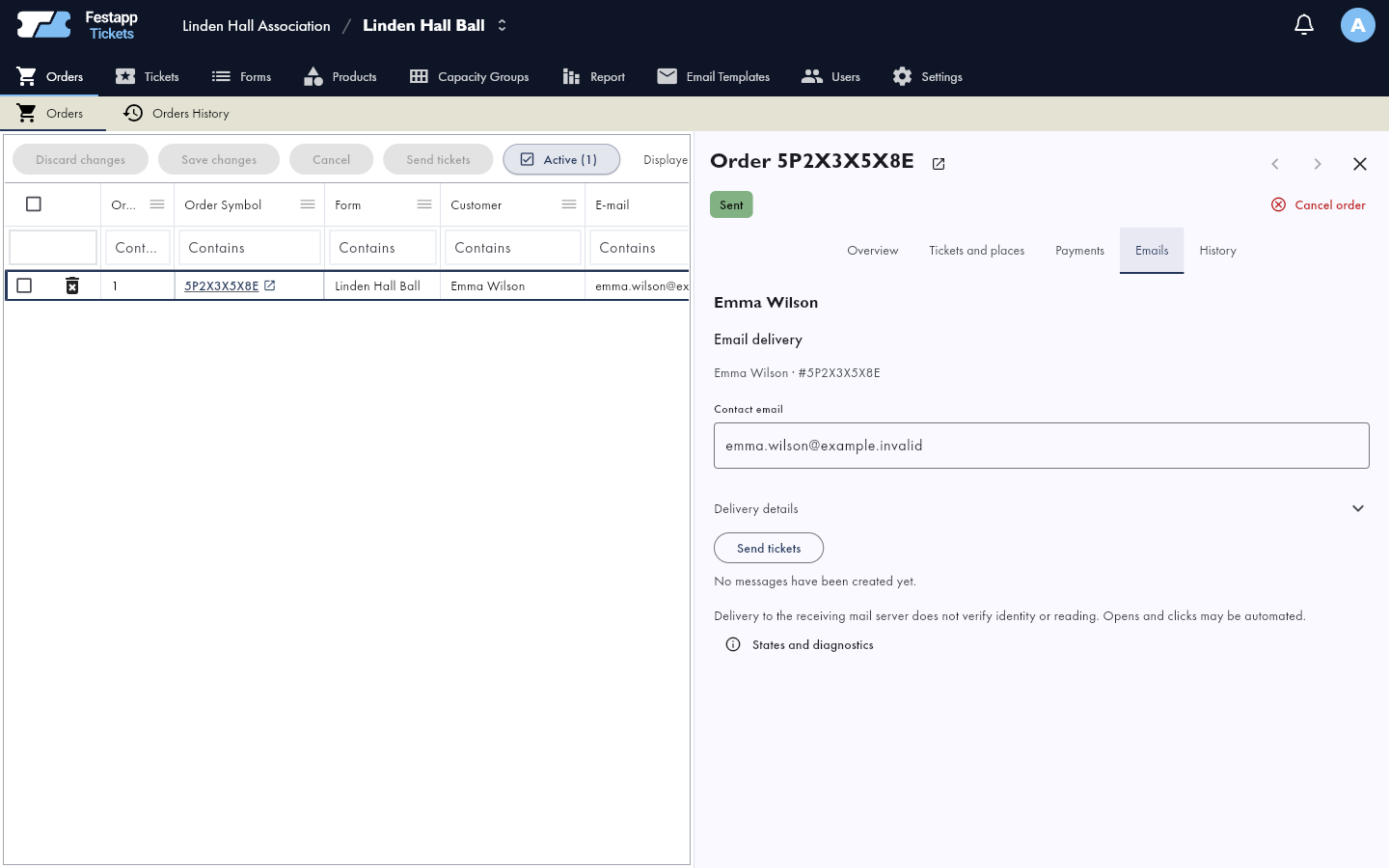
- Emails: contact repair, available sending actions and message details.
- History: recorded changes to this order.
Check payments and the balance
Open Payments in the order detail. Compare the total, received and refunded amounts, and balance due. This tab also shows the payment instructions saved for the order; changing the organizer's account does not automatically replace them.
Record cash actually received through Add Payment, following the cash payment guide. Do not create a cash record to replace a bank transfer.
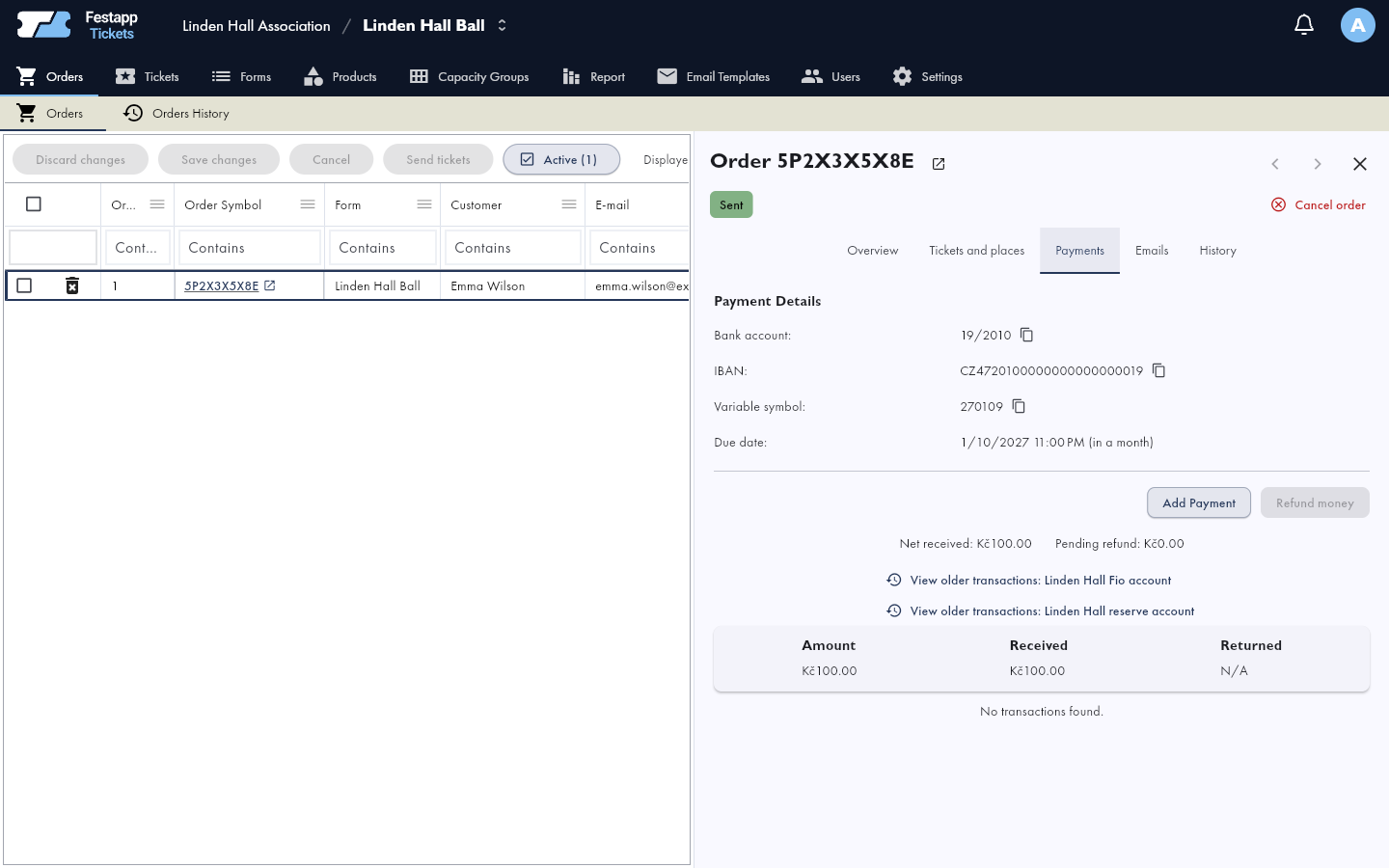
The buyer paid but the order remains unpaid
From the detail's Payments tab, follow manual bank payment matching. You need transaction management access to the receiving account and order editing permission. The guide also covers transfers linked to another order.
Repair contact and delivery
Open Emails in the order detail
Check the contact and this order's messages. Clicking the delivery status in the table is a shortcut to the same tab.
Verify the recipient and Delivery details
Confirm the address with the customer. Use the contact repair section to update Contact email. Delivery details explains the problem and available next step.
Save the contact or explicitly send a message
Save changes saves draft edits, including the contact, without sending a message. Use the offered Save and send tickets or Save and send confirmation action according to the current order state.
Before retrying, check whether sending is queued, blocked or uncertain. Queued is not confirmed delivery. Fix a blocked recipient or ask an administrator to review it instead of repeatedly sending the same message.
Edit items or cancel an order
Open Tickets and places and select an item. When its state and your permissions allow, use Edit products or Cancel ticket. Application events use corresponding application labels. Check the new price and balance afterward.
Use Cancel order in the detail to cancel the whole order and review the confirmation. Cancellation does not refund money. Handle refunds separately through the supported payment process and verify the result. For venue edits, see seating changes during sales.
Verify history and saved changes
The History tab shows recorded changes. Draft edits are not saved until you confirm them. Before switching orders, check for unsaved changes.
The event sales summary
Report provides a sales summary; it does not replace the payment or delivery detail of an individual order.Open the report in the app
Verify the resolution
Check the saved contact, actual payment balance and current delivery result. Ask the customer to check spam too. Do not send another person's order or create another purchase merely to replace a missing confirmation.