
How to design tickets and check the PDF
Administration: changes to an existing event.
Choose a template, adjust the design and check the actual PDF. A readable QR code matters more than decoration.
Before you begin
You need ticket features and permission to edit event settings. Prepare the event name, date, venue and optional logo or artwork you have permission to use.
Edit the ticket
Choose a template
Open Edit ticket from ticket settings and choose a template. For a new event, use the separate setup wizard guide.Open event settings
Adjust the elements
Check the event name, date, venue, ticket identifier and any seat or name. Move or resize elements and change their font. Hide optional information that is not needed.
Check the artwork and QR
Keep essential text and the protected QR area clear. Use a sufficiently dark code on a light background. Fix marked overflow or QR collisions before saving.
Check the output format
Review ticket dimensions, PDF paper format and margins. A larger paper size does not necessarily enlarge the ticket itself.
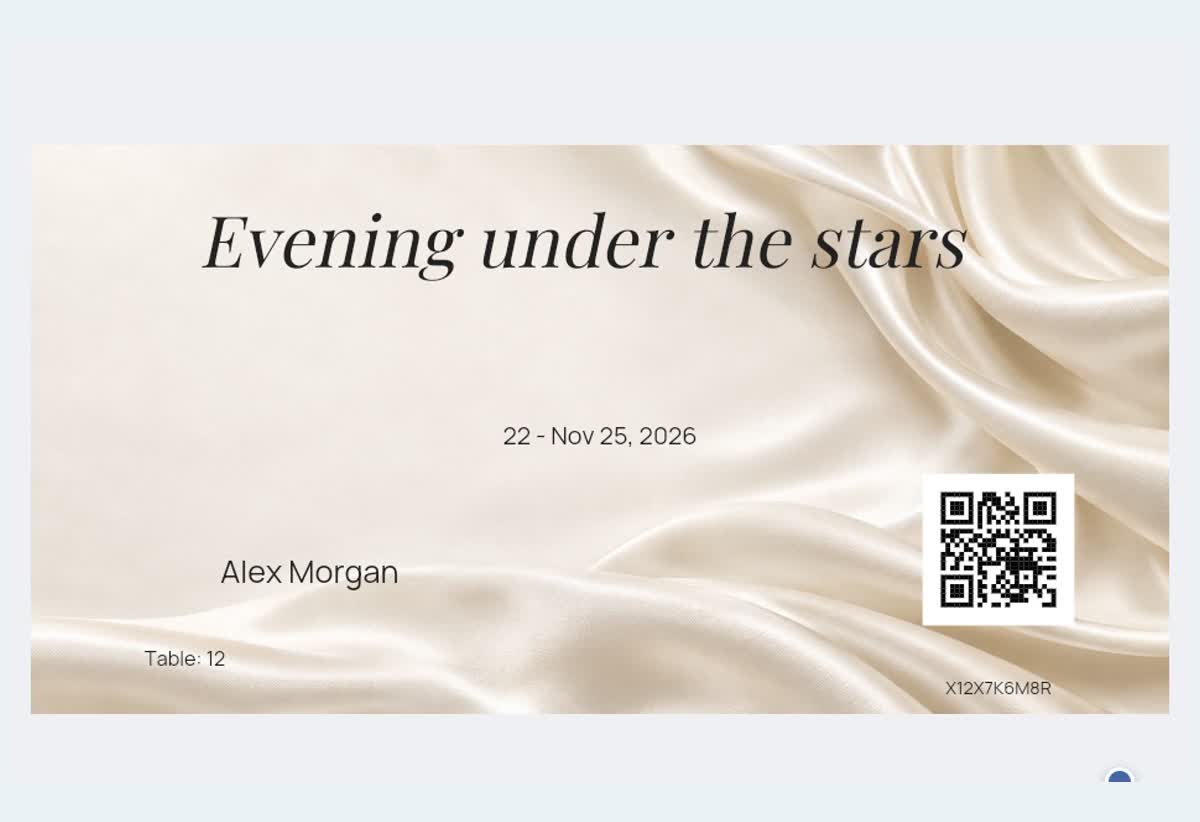
Check PDF preview
Open PDF preview and regenerate it after further edits. Check long event and buyer names, seat information, price, ticket identifier and the full QR. Missing fields may leave empty space.
Save and verify
Use the available Save action. If the editor returns through Apply, also save the parent settings. During event setup the design remains part of the draft until the event is completed. Check a real test ticket PDF and try its QR in check-in. Find the test ticket in your event's Tickets section.Open tickets in the app
Generating a preview does not email customers. Sample QR codes are not valid admission to a real event.