
Create an event with the setup wizard
On this page
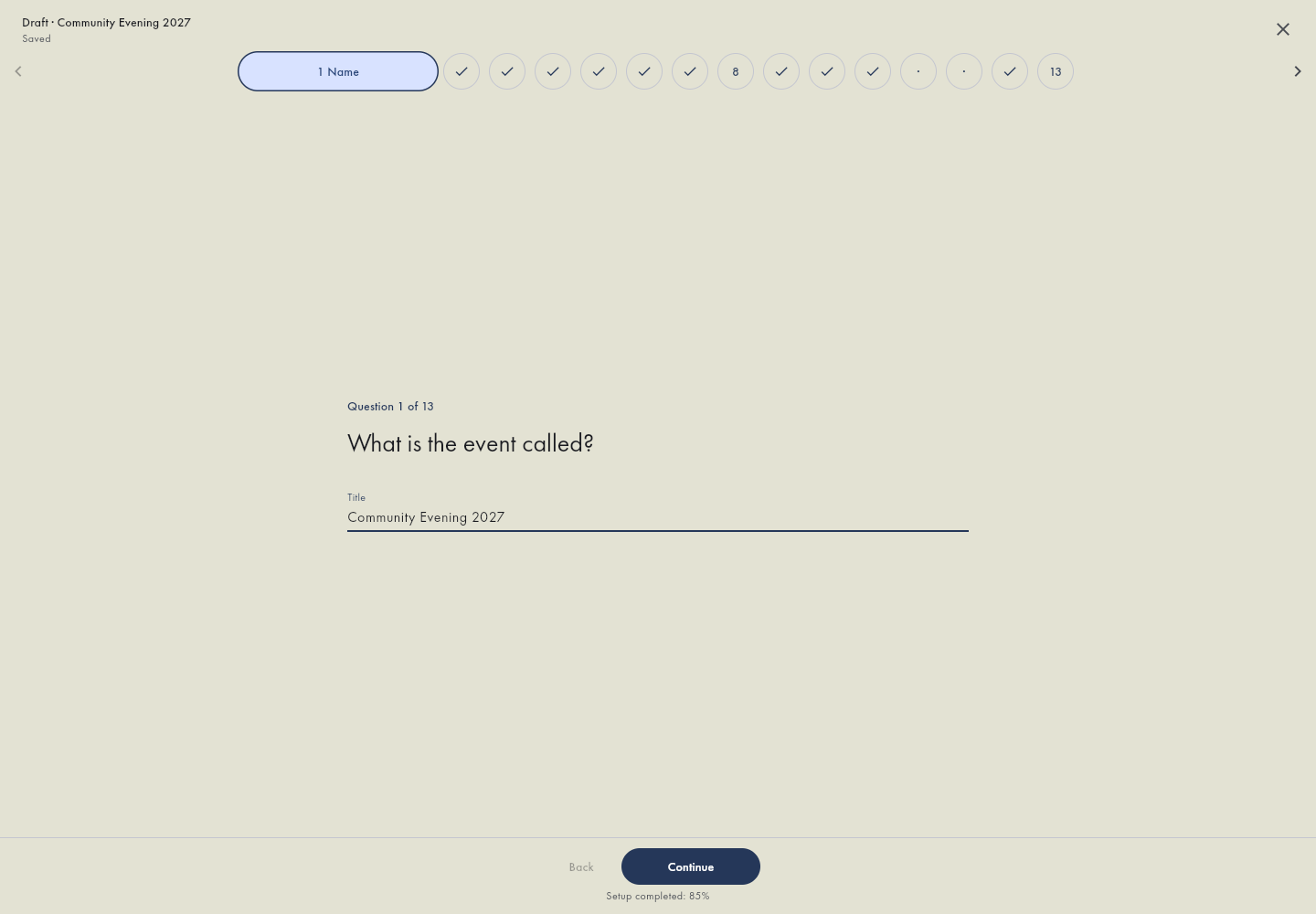
Setup wizard: a new event before creation.
Create your event, prepare the information visitors need and set up ticket sales. You can save a private draft and return to it later.
Before you begin
Sign in to the administration with permission to create events in your organization. Prepare the name, dates, venue and organizer contact. If the create action is missing, ask your organization manager for access.
Create a new event
Open your organization's event list
Open your event list and choose Create new event. The step-by-step option guides you through the setup. The option without the wizard creates the basics for you to complete later.Open organizer events
Enter the name and dates
Include both start and end times. The end cannot precede the start. Use a recognizable name that will also make sense on the order form and ticket.
Introduce the event
Add the venue, description and optional cover image. Check practical information such as when doors open. Promotion in the public listing is a separate choice and needs a cover image.
Finish the wizard sections
Continue with the offer and capacity, optional seating plan, ticket appearance and receiving account. Questions depend on the enabled features. These choices remain in the draft; use administration guides for later changes after creating the event.
Seating in the wizard
At the seating-plan question, choose to create a plan and select a venue template. Edit tables and chairs, then save and return to the wizard. The result remains in the draft until you finish creating the event. Later changes belong to the separate administration guide.
Ticket appearance in the wizard
Choose a ticket template or open the editor at the appearance question. Saving its design is not the same as completing event creation. Later edits use ticket settings in the event administration. After creating the event, use the ticket design and PDF guide.
Select a receiving account in the wizard
Choose and confirm an existing receiving account. The wizard does not create a Fio API token. If no suitable account is available, save the draft and prepare the account using Bank account setup, then return to the wizard.
Save your progress
Wait for Saved, or use Save and return to the list when leaving. Reopen the draft from the draft section with Continue. A private draft is not a public order form.
Review and create
Check the event details, offer, capacity, payment account and reply-to address in the summary. Confirm the review and create the event. If the result is uncertain, refresh the list before trying to create another event.
Publishing and opening sales are separate
Check both the public listing setting and the form's sales schedule. Open the saved public form link in a private window and continue to the summary. Submitting an actual order can reserve capacity and send a confirmation email. Once the event is created, open its forms and follow the sales availability guide.Open forms in the app
How links to administration work
Action buttons in these guides open the relevant part of our application. Sign in if needed. Organizer events and bank accounts open your organizer workspace; select the organization if you manage more than one. Other actions ask you to select an event. Your recently used event appears first. For forms, then choose the specific form. Check its name in the administration header before making changes. When embedding a form, continue in the editor of your WordPress, Webnode or other website after copying the saved form link or embed code.