How to prepare ticket payments
On this page
Administration: changes to an existing event.
Check the receiving account, prepare payment instructions and deadlines, and check what the buyer sees after ordering.
Before you begin
Prepare paid products, their currencies and a bank account linked to the organization. Managing bank accounts requires the appropriate permissions. This bank account is separate from a customer's login account.
Check the receiving account for an existing form
First prepare the receiving account using Bank account setup. Fio synchronization has a separate API token and connection guide. This guide changes payment instructions for an existing form, not the account at the bank.
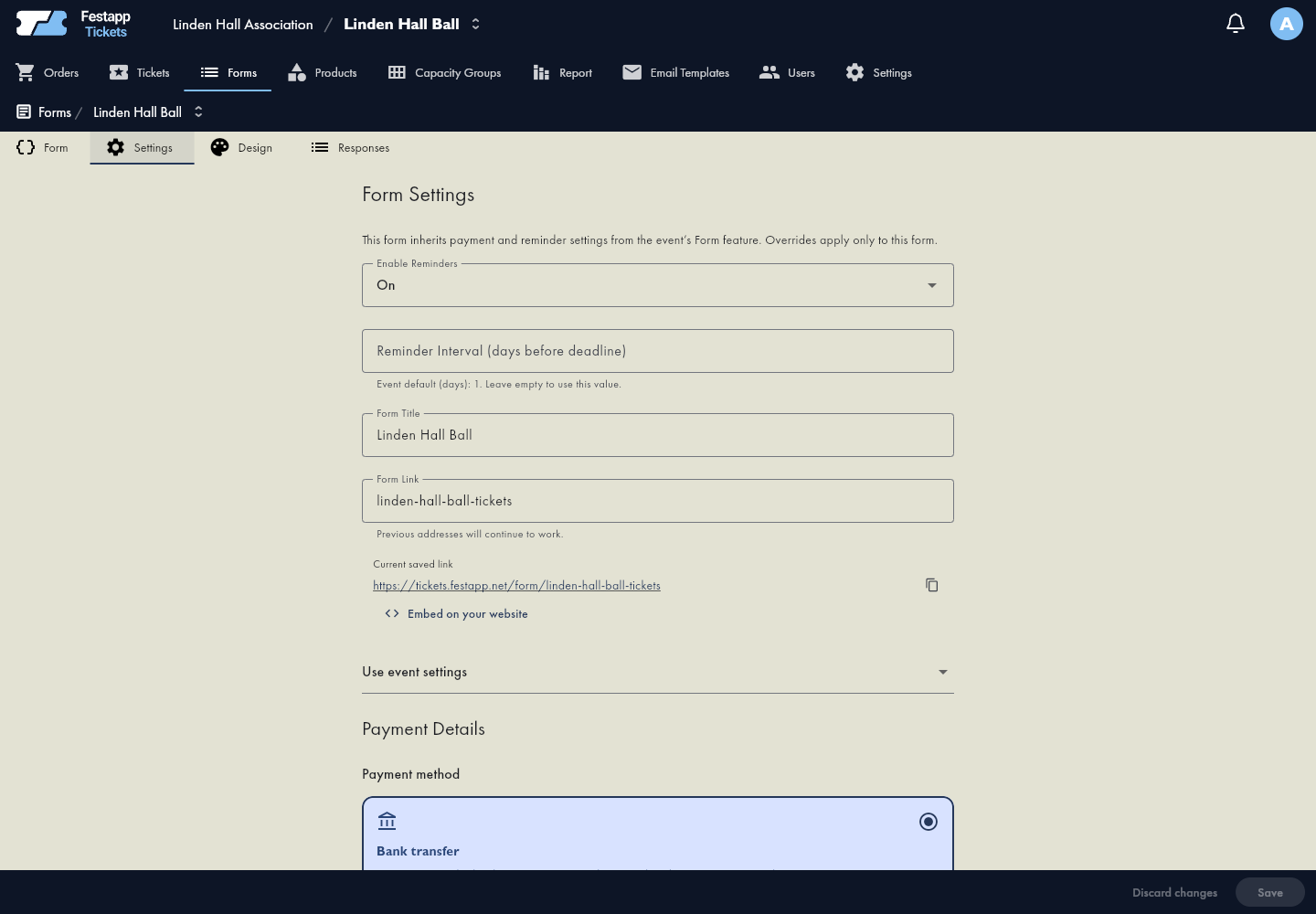
Open Forms → the form → Settings → Payment Details. For each currency, the app uses the first organizer account supporting it.Open forms in the app
To change that choice, edit account priority and supported currencies in the organizer's Bank Accounts. This affects new orders across its forms; check existing orders in order detail → Payments.
The initial account check for a new event belongs to the separate setup wizard.
Set instructions and deadlines
Check payment details, reference generation, recipient message and payment deadline. Choose inherited event settings or a form-specific value. Review reminders and the reply-to contact.
An unpaid order does not automatically cancel or release its seats after the deadline. The organizer handles cancellation. A reminder is not confirmation that money was received.
Check the buyer's instructions
After deliberately submitting a test order, check the amount, currency, account, reference and payment QR. The payment-QR setting controls instructions on the confirmation screen. An accepted order is not a paid order. Submission may reserve capacity and send an email, so resolve the test order afterward.
Wrong or missing payment reference
Follow manual bank payment matching to find a transfer, check permissions and correct a link to another order.
If a payment is not matched
Open order detail → Payments and compare the balance with the received transaction's amount and reference, and check bank connection status. Verify the first payment before asking a customer to pay again. Use other payment methods only when they are actually activated and displayed for your organization.Open orders in the app
Record cash actually received
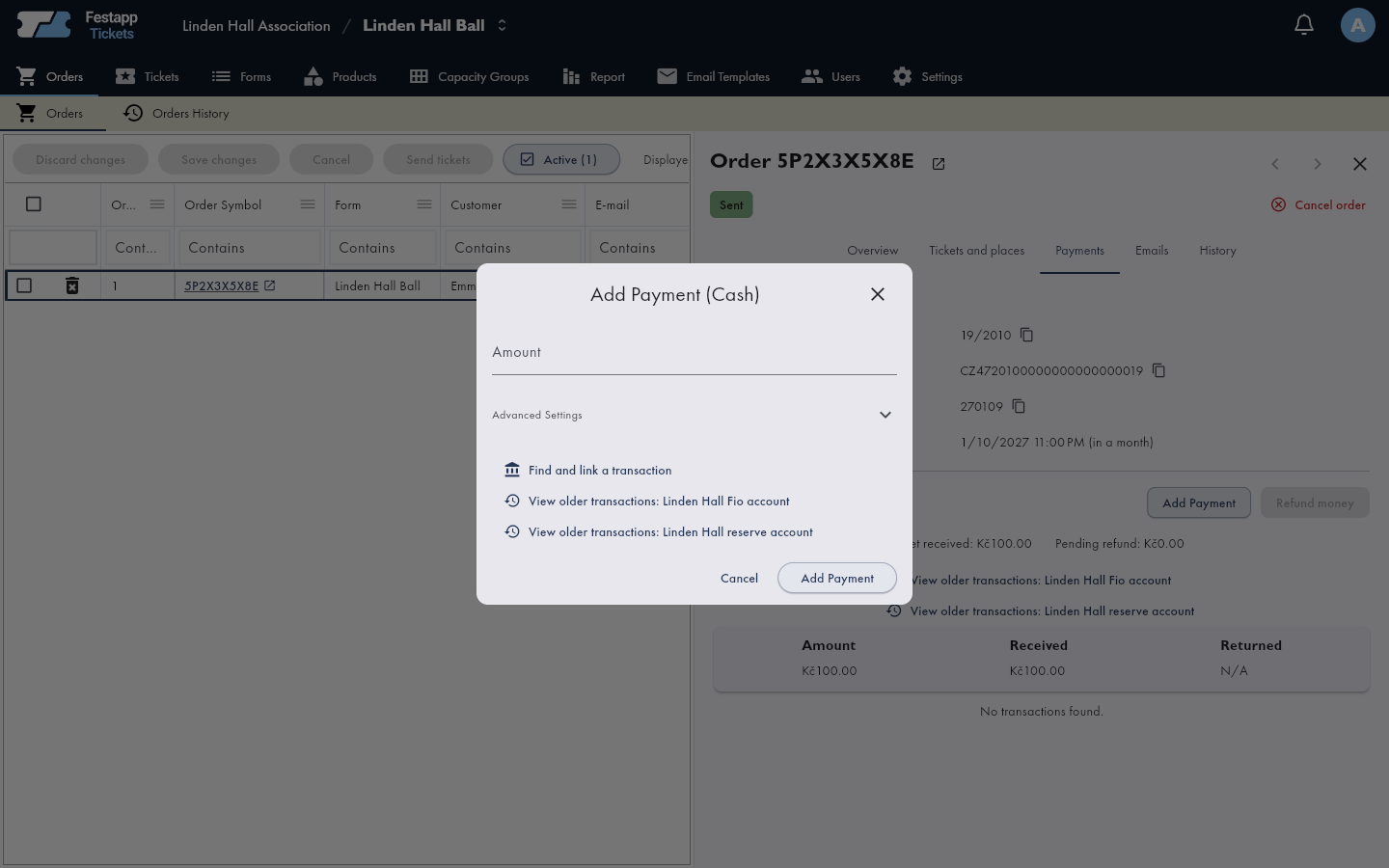
Open the order detail, choose Payments, then Add Payment. Enter the amount actually received and confirm. This records cash, not a bank transfer. For a transfer, follow bank payment matching. Recheck the received amount and balance in the order detail.