
Connect Fio using an API token
On this page
Organizer settings: bank accounts outside the event wizard.
To import incoming payments from Fio, create a read-only API token and connect it to the matching organizer bank account.
Before you begin
You need access to the account in Fio Internetbanking and permission to manage the organizer's bank account. Verify that both refer to the same account. Creating the token, authorizing it at the bank and saving it in our app are separate steps.
Create and authorize the token at Fio
Open Fio Internetbanking
Sign in at ib.fio.cz and select the correct account.
Open Settings → API
Create a token with account-monitoring permission only. Importing incoming transactions does not require permission to submit payment orders. Check its expiry date.
Finish authorization
Confirm creation using the bank's required authorization method. Completing the form alone does not activate the token. Where multiple signatures are required, finish every required authorization.
Allow activation time
Fio specifies API availability five minutes after successful authorization. See the official Fio API documentation.
Save the token in the bank account connection
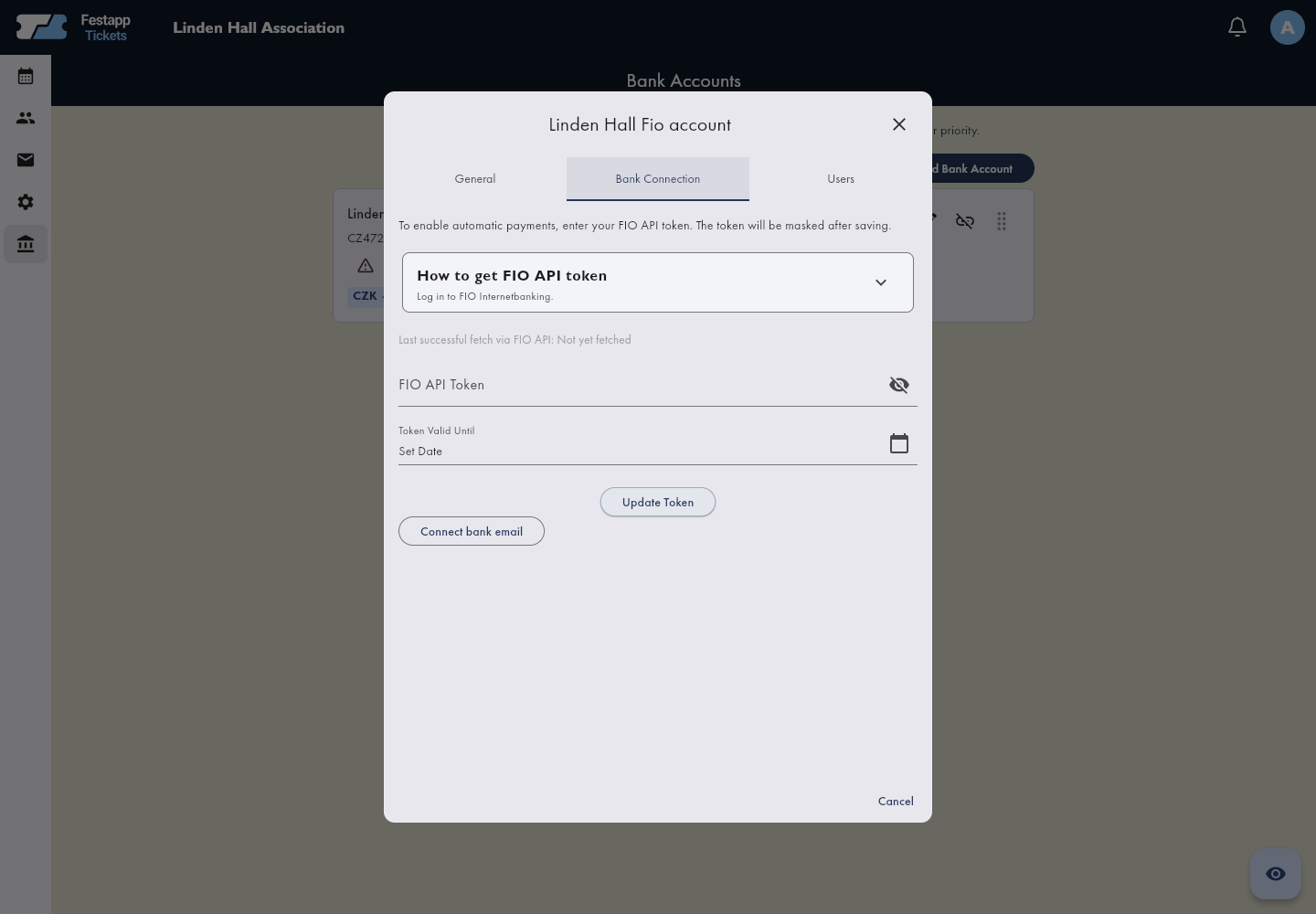
Open Bank Accounts in organizer administration, select the matching Fio account and open its bank connection. Enter FIO API Token, set its actual expiry and choose Update Token. After saving, only a masked indication is shown; the full token is not displayed again.
Stored credentials and successful bank imports are different
Check connection status, any message and the last successful Fio API import. Saving a token does not by itself prove a successful bank import. If the stored token awaits authorization or verification, complete authorization and allow activation time before replacing it.
An invalid or inactive token requires checking the token and its authorization. An account mismatch means the token belongs to a different account. A transport timeout or temporary outage does not prove an invalid token. If synchronization is paused, check its automatic synchronization control.
If an order is still unpaid
In order detail → Payments, compare the receiving account, amount, reference and linked transaction. Receiving a transaction, matching it and updating an order are distinct states. Verify the first payment before asking the customer to pay again.Open orders in the app For further checks, follow unmatched payments.