
Match a bank payment with an incorrect reference
On this page
Administration: changes to an existing event.
A buyer paid by bank transfer but entered an incorrect or missing payment reference? Find the received transfer and link it to the correct order.
Before you begin
You need bank administrator access for the receiving account, including permission to manage its transactions, and permission to edit orders for the event. Viewing orders alone is insufficient. If the linking action is missing, ask the organizer administrator to check both permissions.
Prepare the order symbol or contact email, transfer amount, currency, date, sender account and the reference or recipient message actually entered. The transfer must already be imported into the app. This guide covers bank transfers; card payments use a separate process.
Check the original transfer before asking the buyer to pay again. Do not record a bank transfer as cash or change the order reference to match a buyer's typo.
Find and link the transfer
Find the correct order
Open the event and Orders. Search by order symbol, name or email, then click the symbol to open its detail. Compare the buyer, price, currency, amount already paid and remaining balance. See finding an order.Open orders in the app
Open transaction search
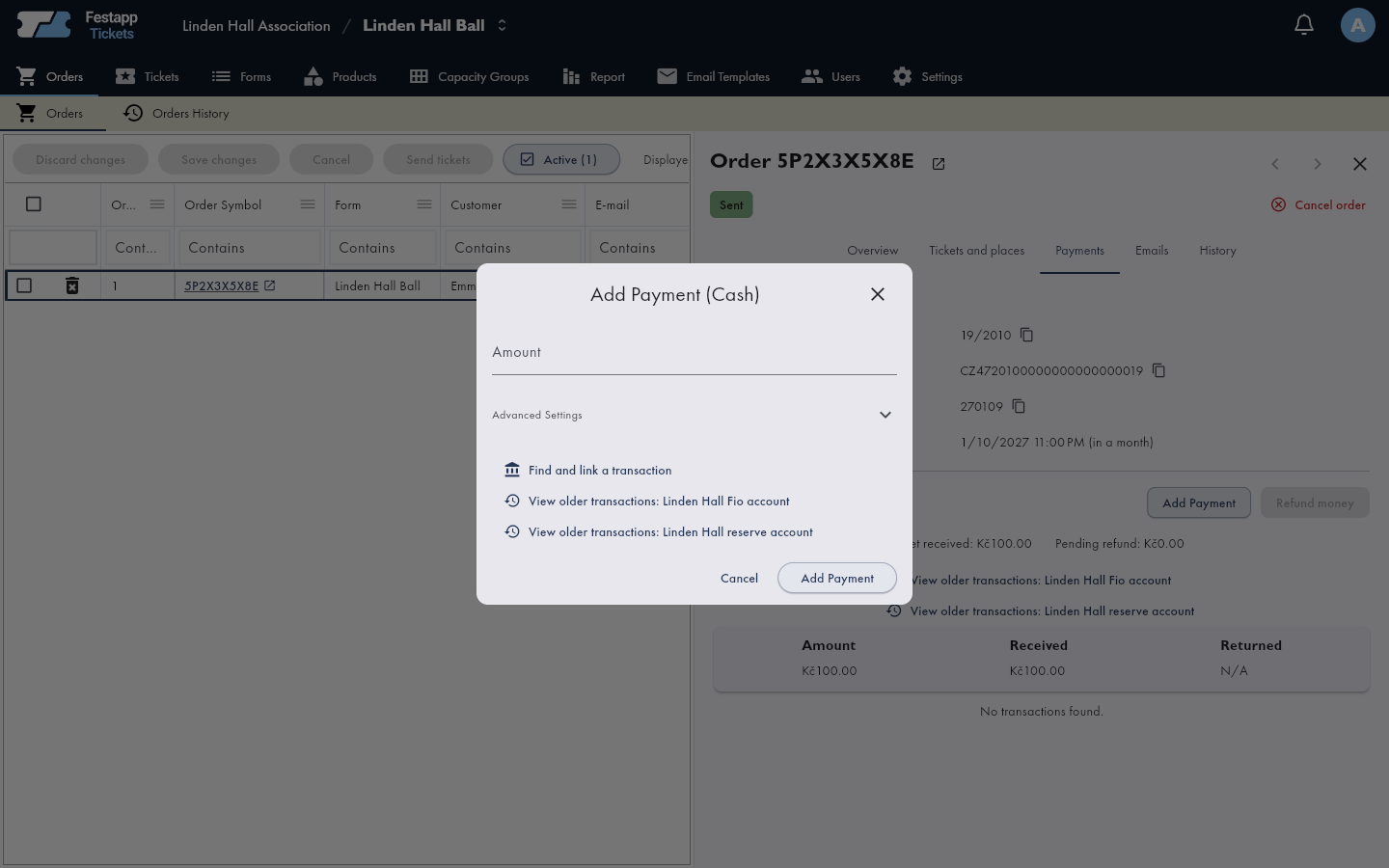
Open the order detail's Payments and choose Add payment. In the cash-payment dialog, use Find and link a transaction instead of completing the cash form.
Find the received transfer
Search unmatched transactions by recipient message, account number, entered reference, sender name or amount. Use a decimal point for an amount such as
1200.50. Only unassigned transactions on the receiving account saved with this order are listed. Try the sender account or message when the reference is wrong.Compare details and confirm
Verify the date, amount, currency, sender account, sender name and message. An amount match alone is insufficient. Select the correct transaction and confirm adding it. This links an existing transfer; the buyer does not pay again.
Check the result
The transaction appears on the order. Check the updated Payments tab and refresh the detail if needed. Check the paid amount, remaining balance and payment state. A smaller transfer leaves a balance due. Link each verified transfer separately if the buyer split payment. For a deposit order, also check the remaining amount.
Check ticket delivery too
Linking recalculates the paid amount and order payment state. It does not prove that an email was delivered. Check the current sending state and follow contact and ticket delivery recovery if needed.
The transfer is not listed
- Not imported yet: verify that money reached the correct account and check the bank connection. See the Fio API token guide. A transfer instruction receipt alone does not prove receipt of funds.
- A different receiving account: compare the account saved with the order to the transfer destination. Changing organizer account priority does not change old orders. Ask the bank administrator to resolve the mismatch; see bank account setup.
- Already linked to another order: assigned transfers do not appear in this list. A valid reference belonging to another order can cause this. Verify the existing link, then follow correcting a wrong link.
- Cancelled order or different currency: this linking procedure cannot resolve those cases. Ask the administrator to resolve the order state or payment mismatch first. Do not create another order merely to replace looking for the transfer.
Correct a wrong link
Once you have verified which order owns the transfer, open the currently linked order detail and its Payments tab. Click the bank transaction's bin icon and confirm unlinking. For a bank transfer this removes its order association; it does not refund money. Open the correct order, then find and link the now-unassigned transfer.
You also need permission for the original order. Check both orders afterward: paid amounts, balances and ticket states. The original order may have a balance due again. If you lack access or an order is cancelled, ask the administrator to handle the correction.
Information for the administrator or support
Prepare the event name, order symbol, amount, currency, receipt date, entered reference and the step that failed. The bank administrator can also compare the sender account and recipient message. Do not guess which order owns an unclear transfer. Contact info@festapp.net if needed; never send passwords, bank login credentials or API tokens.