
How to check in visitors and verify tickets
On this page
Web scanner: the door staff workflow.
Open the web scanner in your phone browser, prepare staff access, scan ticket QR codes and confirm admission only after checking the result.
Prepare access and the device
Check event and permissions
Prepare scanning access in ticket settings or use an account authorized for this event. Keep scanning credentials private; they are different from a customer's ticket QR.Open tickets in the app
Open admission control
Open the prepared check-in link in your phone browser, verify the event and allow camera access. Test a sample ticket and lighting before doors open.
Prepare a fallback
Use manual code entry if the camera cannot read. Name search is available only when enabled for the event. Prepare offline data while still connected if the device may lose internet access.
Scan and confirm
Keep the whole QR in view. Compare the displayed details and state. Confirm admission for a valid ticket. Reading the QR alone does not confirm entry; check and confirm each ticket separately.

Respond to the result
- Green - admission confirmed: a server receipt confirms the result.
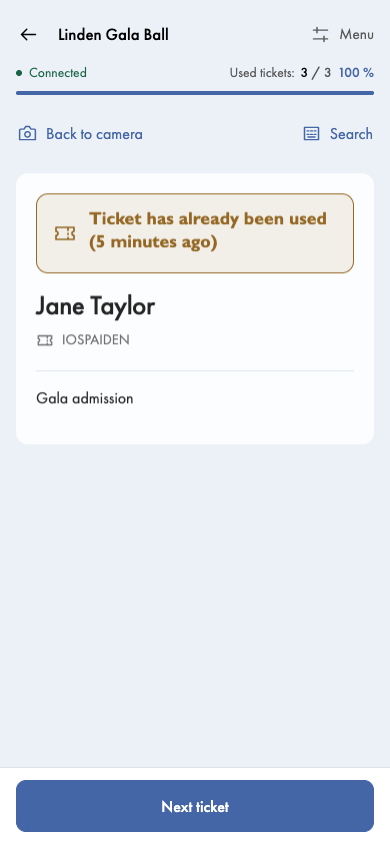
- Amber - already used: when the time is known, the scanner shows how long ago, for example “5 minutes ago”. check history and resolve the situation with the responsible organizer; do not automatically confirm a second entry.
- Amber - unpaid: follow the organizer's admission rules. Deliberate admission without verified payment requires its own confirmation and does not record a received payment.
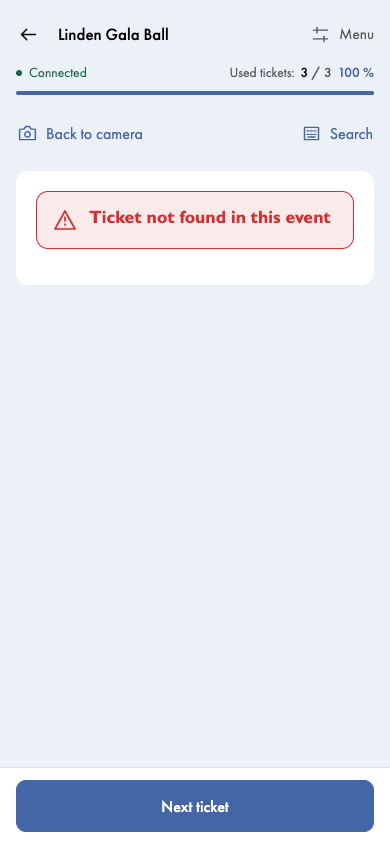
- Red - ticket not found: check the event and entered symbol. Without prepared offline data, an unverified code is not proof of an invalid ticket.
- Saved on this device, awaiting upload: the local admission has not yet been confirmed by the server.
Wrong code: scanner access or a ticket?
Invalid scanner code
This message concerns staff access to the scanner. Ask the organizer to verify the link or Scanner code and open the scanner again. Do not enter a customer's ticket symbol here. Check the event before starting admission.
Ticket not found
The scanner is open, but the entered code does not match a ticket for this event. Check the event name and the complete ticket symbol, or scan the QR again. An order symbol is different from an individual ticket symbol. Select Next ticket to try again; ask the organizer to find the order if the problem continues.
Ticket has already been used is a different result: the ticket exists but has a previous admission. Resolve unpaid tickets according to the organizer's rules. If the connection drops, follow If the connection drops; an unverified code alone is not proof of an invalid ticket.
If the connection drops
For events with at most 1,000 tickets in the offline data, preparation starts automatically when you open the scanner while connected, provided the organizer allows it. For larger events, start preparation manually from the scanner menu. Always check that preparation is complete and authorization is valid before admission. A prepared device keeps refreshing its data even if the event later grows.
Check offline readiness and authorization validity in advance. Offline devices do not see current changes from other devices. Keep the original device available and leave the app open after reconnecting until its queue is sent. Do not rely on synchronization while the browser is closed.
Do not clear browser data or reset a device with unsent admissions. If safe storage fails, use another prepared device rather than an unconfirmed in-memory record.
Organizer settings
To configure products, additional form answers and available tools, use Scanner settings. Door staff do not need to change this configuration to check tickets. For organizers authorized to change settings:Open scanner display settings
After check-in
Review admission records in History. If Sync status is available, check pending operations and conflicts there. Used-ticket counts are not a count of people physically inside the venue. Organizers with administration access can open the order detail. Check individual tickets in Tickets and places, payment in Payments and delivery in Emails.Open orders in the app