
How to embed ticket sales in Webnode
Use an HTML block to embed your public form in Webnode. There is no separate Webnode plugin.
Check HTML availability
Webnode says that projects created after 26 June 2023 require a Premium plan to add HTML to page content. Its plan is separate from your ticket service fees.
Embed the form
Prepare the code
Use your saved public form link in the HTML generator. Get the saved public link from Forms, then return to Webnode.Open forms in the app
Open your Webnode page
Open the page in the editor. Move to the place where the form should appear and use the add-content button.
Add HTML
Select HTML, paste the complete code and save it. An active Premium plan is required in new projects.
Publish and verify
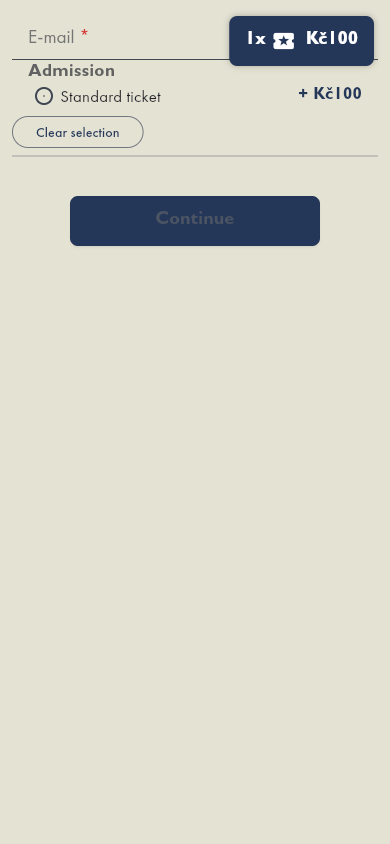
Check the actual published website, as the editor may not show embedded content. Check mobile and the order summary. If scripts are removed, try fixed height.
If payment-detail copy buttons do not work in an older embed, generate fresh code, replace the complete HTML block and publish the page again.
If HTML is unavailable
Add a Buy tickets button and link it to the standalone public form. Confirm the pasted link with Enter, save the button, then edit its label to Buy tickets. For a missing or clipped form, use troubleshooting.